- Basic Image Operations
- Python Pillow - Working with Images
- Python Pillow - Resizing an Image
- Python Pillow - Flip and Rotate Images
- Python Pillow - Cropping an Image
- Python Pillow - Adding Borders to Images
- Python Pillow - Identifying Image Files
- Python Pillow - Merging Images
- Python Pillow - Cutting and Pasting Images
- Python Pillow - Rolling an Image
- Python Pillow - Writing text on image
- Python Pillow - ImageDraw Module
- Python Pillow - Concatenating two Images
- Python Pillow - Creating Thumbnails
- Python Pillow - Creating a Watermark
- Python Pillow - Image Sequences
- Python Pillow Color Conversions
- Python Pillow - Colors on an Image
- Python Pillow - Creating Images With Colors
- Python Pillow - Converting Color String to RGB Color Values
- Python Pillow - Converting Color String to Grayscale Values
- Python Pillow - Change the Color by Changing the Pixel Values
- Image Manipulation
- Python Pillow - Reducing Noise
- Python Pillow - Changing Image Modes
- Python Pillow - Compositing Images
- Python Pillow - Working with Alpha Channels
- Python Pillow - Applying Perspective Transforms
- Image Filtering
- Python Pillow - Adding Filters to an Image
- Python Pillow - Convolution Filters
- Python Pillow - Blur an Image
- Python Pillow - Edge Detection
- Python Pillow - Embossing Images
- Python Pillow - Enhancing Edges
- Python Pillow - Unsharp Mask Filter
- Image Enhancement and Correction
- Python Pillow - Enhancing Contrast
- Python Pillow - Enhancing Sharpness
- Python Pillow - Enhancing Color
- Python Pillow - Correcting Color Balance
- Python Pillow - Removing Noise
- Advanced Topics
- Python Pillow - Creating Animated GIFs
- Python Pillow - Batch Processing Images
- Python Pillow - Converting Image File Formats
- Python Pillow - Adding Padding to an Image
- Python Pillow - Color Inversion
- Python Pillow - M L with Numpy
- Python Pillow with Tkinter BitmapImage and PhotoImage objects
- Image Module
- Python Pillow - Image Blending
- Python Pillow Useful Resources
- Python Pillow - Quick Guide
- Python Pillow - Function Reference
- Python Pillow - Useful Resources
- Python Pillow - Discussion
Python Pillow - Resizing an Image
Resizing an image in Pillow Library involves changing the dimensions i.e. width and height of the image. This operation can be used to make an image larger or smaller and it can serve various purposes such as preparing images for display on a website, reducing file size or generating thumbnails.
Resizing an Image using the resize() method
In Pillow the resize() method is used to change the dimensions of an image. This function allows us to resize an image in the following ways.
Absolute Dimensions − We can specify the new width and height in pixels to which the image should be resized.
Maintaining Aspect Ratio − If We only specify one dimension either width or height then Pillow can automatically calculate the other dimension to maintain the image's aspect ratio.
Scaling − We can resize the image by a scale factor which uniformly resizes both width and height while preserving the aspect ratio.
Here's the basic syntax for the resize() method −
PIL.Image.resize(size, resample=3)
Where,
size − This can be either a tuple specifying the new width and height in pixels i.e. a single integer specifying the new size (width or height) or a float specifying a scaling factor.
resample(optional) − The default value is 3 which corresponds to the anti-aliased high-quality filter. We can choose from various resampling filters such as Image.NEAREST, Image.BOX, Image.BILINEAR, Image.HAMMING, Image.BICUBIC, Image.LANCZOS, etc.
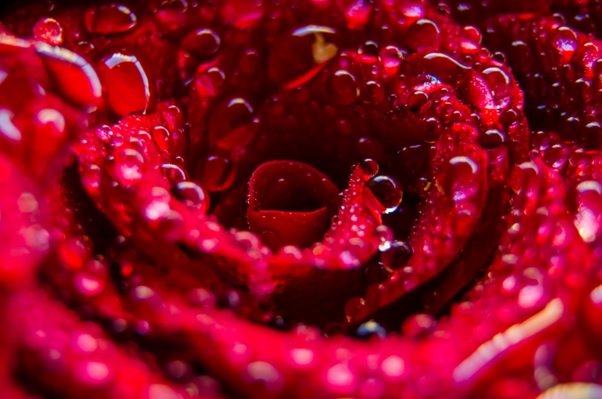
Following is the input image used in all the examples of this chapter.
Example - Resizing an Image
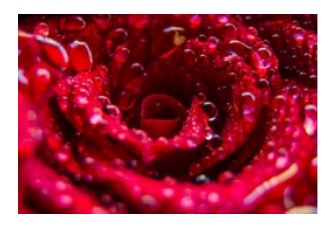
In this example we are using the resize() function for adjusting the width and height of the image by passing a tuple as input parameter.
main.py
from PIL import Image

#Open an image
image = Image.open("Images/rose.jpg")

#Resize to specific dimensions (e.g., 300x200 pixels)
new_size = (300, 200)
resized_image = image.resize(new_size)

#Display resized image
resized_image.show()
Output
Example - Resizing an Image with maintaining Aspect Ratio
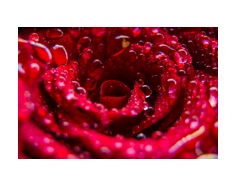
Here in this example we are resizing the image by maintaining the same aspect ratio of the original input image.
from PIL import Image

#Open an image
image = Image.open("Images/rose.jpg")

#Resize by maintaining aspect ratio (e.g., specify the width)
new_width = 200
aspect_ratio_preserved = image.resize((new_width, int(image.height * (new_width / image.width))))
aspect_ratio_preserved.show()
Output
Example - Resizing with Scale Factor
In this example we are resizing the image with the scale by factor.
main.py
from PIL import Image

#Open an image
image = Image.open("Images/rose.jpg")

#Scale the image by a factor (e.g., 10% of the original size)
scaling_factor = 0.1
scaled_image = image.resize((int(image.width * scaling_factor), int(image.height * scaling_factor)))
scaled_image.show()
Output