
- Basic Image Operations
- Python Pillow - Working with Images
- Python Pillow - Resizing an Image
- Python Pillow - Flip and Rotate Images
- Python Pillow - Cropping an Image
- Python Pillow - Adding Borders to Images
- Python Pillow - Identifying Image Files
- Python Pillow - Merging Images
- Python Pillow - Cutting and Pasting Images
- Python Pillow - Rolling an Image
- Python Pillow - Writing text on image
- Python Pillow - ImageDraw Module
- Python Pillow - Concatenating two Images
- Python Pillow - Creating Thumbnails
- Python Pillow - Creating a Watermark
- Python Pillow - Image Sequences
- Python Pillow Color Conversions
- Python Pillow - Colors on an Image
- Python Pillow - Creating Images With Colors
- Python Pillow - Converting Color String to RGB Color Values
- Python Pillow - Converting Color String to Grayscale Values
- Python Pillow - Change the Color by Changing the Pixel Values
- Image Manipulation
- Python Pillow - Reducing Noise
- Python Pillow - Changing Image Modes
- Python Pillow - Compositing Images
- Python Pillow - Working with Alpha Channels
- Python Pillow - Applying Perspective Transforms
- Image Filtering
- Python Pillow - Adding Filters to an Image
- Python Pillow - Convolution Filters
- Python Pillow - Blur an Image
- Python Pillow - Edge Detection
- Python Pillow - Embossing Images
- Python Pillow - Enhancing Edges
- Python Pillow - Unsharp Mask Filter
- Image Enhancement and Correction
- Python Pillow - Enhancing Contrast
- Python Pillow - Enhancing Sharpness
- Python Pillow - Enhancing Color
- Python Pillow - Correcting Color Balance
- Python Pillow - Removing Noise
- Advanced Topics
- Python Pillow - Creating Animated GIFs
- Python Pillow - Batch Processing Images
- Python Pillow - Converting Image File Formats
- Python Pillow - Adding Padding to an Image
- Python Pillow - Color Inversion
- Python Pillow - M L with Numpy
- Python Pillow with Tkinter BitmapImage and PhotoImage objects
- Image Module
- Python Pillow - Image Blending
- Python Pillow Useful Resources
- Python Pillow - Quick Guide
- Python Pillow - Function Reference
- Python Pillow - Useful Resources
- Python Pillow - Discussion
Python Pillow - Creating Animated GIFs
The GIF (Graphics Interchange Format), is a bitmap image format developed by a team at CompuServe, an online services provider, under the leadership of American computer scientist Steve Wilhite. GIF ware not designed as an animation medium. However, its ability to store multiple images within a single file made it a logical choice for representing the frames of an animation sequence. To support the presentation of animations, the GIF89a specification introduced the Graphic Control Extension (GCE). This extension enables the specification of time delays for each frame, effectively allowing the creation of a video clip from a series of images.
In an animated GIF, each frame is introduced by its own GCE, specifying the time delay that should occur after the frame is drawn. Additionally, global information defined at the beginning of the file applies as the default setting for all frames, simplifying the management of animation settings and behaviors.
Python's Pillow library can read GIF files in both GIF87a and GIF89a formats. By default, it writes GIF files in GIF87a format unless GIF89a features are used or the input file is already in GIF89a format. The saved files use LZW encoding.
Creating Animated GIFs with Python Pillow
It is possible to create animated GIFs using Pillow's Image.save() function. Below are the syntax and the available options when calling save() function to save a GIF file −
Syntax:
Image.save(out, save_all=True, append_images=[im1, im2, ...])
Options:
save_all − If set to true, it saves all frames of the image. Otherwise, it saves only the first frame of a multi-frame image.
append_images − This option allows appending a list of images as additional frames. The images in the list can be single or multi-frame images. This feature is supported for GIF, PDF, PNG, TIFF, and WebP formats, as well as for ICO and ICNS formats. When images of relevant sizes are provided, they will be used instead of scaling down the main image.
include_color_table − Determines whether or not to include a local color table.
interlace − Specifies whether the image is interlaced. By default, interlacing is enabled, unless the image's width or height is less than 16 pixels.
disposal − Indicates how the graphic should be treated after being displayed. It can be set to values like 0 (no disposal specified), 1 (do not dispose), 2 (restore to the background color), or 3 (restore to previous content). You can pass a single integer for a constant disposal or a list/tuple to set disposal for each frame separately.
palette − This option allows you to use a specified palette for the saved image. The palette should be provided as a bytes or bytearray object containing the palette entries in RGBRGB... form. It should be no more than 768 bytes. Alternatively, you can pass the palette as a PIL.ImagePalette.ImagePalette object.
optimize − If set to true, it attempts to compress the palette by eliminating unused colors. This optimization is useful when the palette can be compressed to the next smaller power of 2 elements.
Additional options like transparency, duration, loop, and comment can be provided to control specific aspects of the animated GIF.
Example - Creating an Animated GIF image
Here is an example that demonstrates how to create a GIF animation by generating individual frames with different colors and saving them.
main.py
import numpy as np
from PIL import Image

# Function to create a new image with a specified width, height, and color
def create_image(width, height, color):
   return Image.new("RGBA", (width, height), color)

# Set the width and height of the images
width, height = 300, 300

# Define the colors for the images
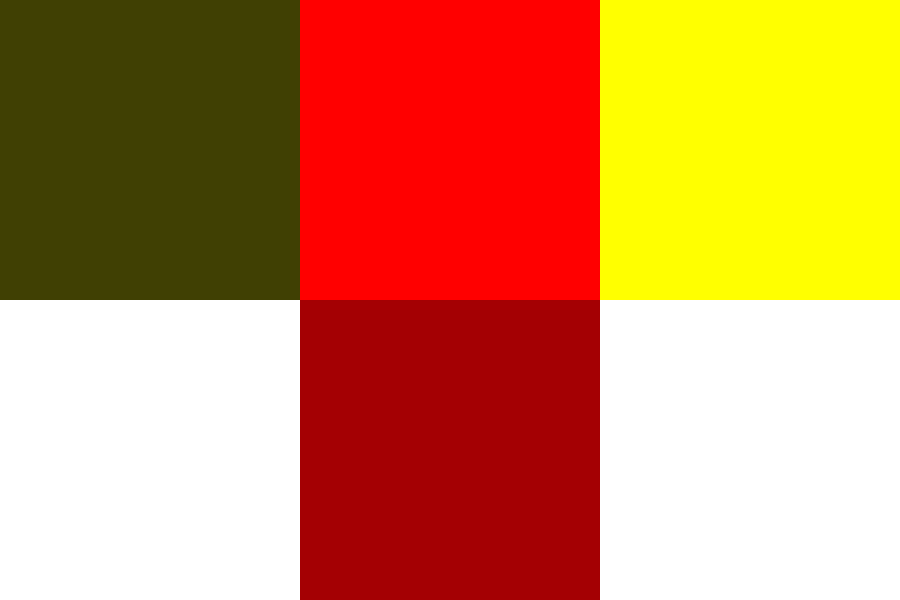
colors = [(64, 64, 3), (255, 0, 0), (255, 255, 0), (255, 255, 255), (164, 0, 3)]

# Create a list of images using a list comprehension
images = [create_image(width, height, color) for color in colors]

# Save the images as a GIF with specified parameters
images[0].save("Output.gif", save_all=True, append_images=images[1:], duration=1000/2, loop=0)
Output
The animated GIFs file is saved successfully...
Below you can see the saved animated GIFs in your working directory −
Example - Creating GIF using multiple Images
The following example takes a list of existing image files to create an animated GIF by saving these images in sequence.
main.py
from PIL import Image

# List of file paths for existing images
image_paths = ['Images/book_1.jpg', 'Images/book_2.jpg', 'Images/book_3.jpg', 'Images/book_4.jpg']

# Create a list of image objects from the provided file paths
image_list = [Image.open(path) for path in image_paths]

# Save the first image as an animated GIF
output_path = \Book_Animation.gif'

image_list[0].save(
   output_path,
   save_all=True,
   append_images=image_list[1:],  # Append the remaining images
   duration=1000,  # Frame duration in milliseconds
   loop=0
)

print('The animated GIF file has been created and saved successfully...')
Output
The animated GIF file has been created and saved successfully...
The following image represents the saved animated GIFs in your working directory −
Example - Modifying an Existing GIF file
This example modifies an existing GIF file by duplicating its last frame a few times and then saves it as a new GIF file. In this example we will use the ImageSequence module to iterate each frames from the input GIF file.
main.py
from PIL import Image, ImageSequence

# Open the existing GIF file
input_image = Image.open("Book_Animation.gif")

# Create an empty list to store the frames of the GIF
frames = []

# Iterate over the frames of the GIF and append them to the frames list
for frame in ImageSequence.Iterator(input_image):
   frames.append(frame)

# Duplicate the last frame three times to extend the animation
for i in range(3):
   frames.append(frames[-1])

# Save the frames as a new GIF file ("newGif.gif"):
output_path = "newGif.gif"
frames[0].save(
   output_path,
   save_all=True,
   append_images=frames[1:],
   optimize=False,
   duration=40,  # Set the frame duration to 40 milliseconds
   loop=0
)
Output
The following image represents the saved animated GIFs in your working directory −