
- Basic Image Operations
- Python Pillow - Working with Images
- Python Pillow - Resizing an Image
- Python Pillow - Flip and Rotate Images
- Python Pillow - Cropping an Image
- Python Pillow - Adding Borders to Images
- Python Pillow - Identifying Image Files
- Python Pillow - Merging Images
- Python Pillow - Cutting and Pasting Images
- Python Pillow - Rolling an Image
- Python Pillow - Writing text on image
- Python Pillow - ImageDraw Module
- Python Pillow - Concatenating two Images
- Python Pillow - Creating Thumbnails
- Python Pillow - Creating a Watermark
- Python Pillow - Image Sequences
- Python Pillow Color Conversions
- Python Pillow - Colors on an Image
- Python Pillow - Creating Images With Colors
- Python Pillow - Converting Color String to RGB Color Values
- Python Pillow - Converting Color String to Grayscale Values
- Python Pillow - Change the Color by Changing the Pixel Values
- Image Manipulation
- Python Pillow - Reducing Noise
- Python Pillow - Changing Image Modes
- Python Pillow - Compositing Images
- Python Pillow - Working with Alpha Channels
- Python Pillow - Applying Perspective Transforms
- Image Filtering
- Python Pillow - Adding Filters to an Image
- Python Pillow - Convolution Filters
- Python Pillow - Blur an Image
- Python Pillow - Edge Detection
- Python Pillow - Embossing Images
- Python Pillow - Enhancing Edges
- Python Pillow - Unsharp Mask Filter
- Image Enhancement and Correction
- Python Pillow - Enhancing Contrast
- Python Pillow - Enhancing Sharpness
- Python Pillow - Enhancing Color
- Python Pillow - Correcting Color Balance
- Python Pillow - Removing Noise
- Advanced Topics
- Python Pillow - Creating Animated GIFs
- Python Pillow - Batch Processing Images
- Python Pillow - Converting Image File Formats
- Python Pillow - Adding Padding to an Image
- Python Pillow - Color Inversion
- Python Pillow - M L with Numpy
- Python Pillow with Tkinter BitmapImage and PhotoImage objects
- Image Module
- Python Pillow - Image Blending
- Python Pillow Useful Resources
- Python Pillow - Quick Guide
- Python Pillow - Function Reference
- Python Pillow - Useful Resources
- Python Pillow - Discussion
Python Pillow - ImageChops.screen() Function
The Python image processing library Pillow (PIL) offers a range of functions within its ImageChops module for performing arithmetical operations on images. In addition to these operations, the module provides functions specifically designed for blending mode operations on images. Among these blending modes is the screen mode.
The ImageChops.screen function in PIL superimposes two inverted images on top of each other using the screen blending mode.
The operation is defined as follows −
$$\mathrm{out\:=\:MAX\:-\:((MAX\:-\:image1)\:*\:(MAX\:-\:image2)\:/\:MAX)}$$
Syntax
Following is the syntax of the function −
PIL.ImageChops.screen(image1, image2)
Parameters
Here are the details of this function parameters −
image1 − The first input binary image with mode "1".
image2 − The second input binary image with mode "1".
Return Value
The return type of this function is an Image.
Examples
Example 1
Here is another example demonstrating the working of the ImageChops.screen() function for superimposing two inverted images on top of each other.
from PIL import Image, ImageChops
import numpy as np

# Create the two input images using numpy arrays
array1 = np.array([(154, 64, 3), (255, 0, 0), (255, 255, 0), (255, 255, 255), (164, 0, 3)], dtype=np.uint8)
array2 = np.array([(200, 14, 3), (20, 222, 0), (255, 155, 0), (255, 55, 100), (180, 0, 78)], dtype=np.uint8)

image1 = Image.fromarray(array1)
image2 = Image.fromarray(array2)

# Display the pixel values of the two input images
print("Pixel values of image1 at (0, 0):", image1.getpixel((0, 0)))
print("Pixel values of image2 at (0, 0):", image2.getpixel((0, 0)))

# Additionally, demonstrate the use of the screen blend mode
result_screen = ImageChops.screen(image1, image2)

# Display the pixel values of the resulting image at (0, 0) after screen blend mode
print("Pixel values of the result at (0, 0) after screen blend mode:", result_screen.getpixel((0, 0)))
Output
Pixel values of image1 at (0, 0): 154
Pixel values of image2 at (0, 0): 200
Pixel values of the result at (0, 0) after screen blend mode: 234
Example 2
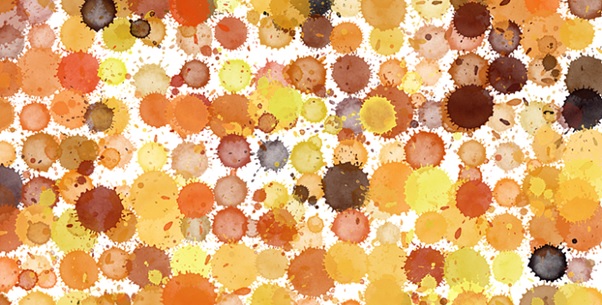
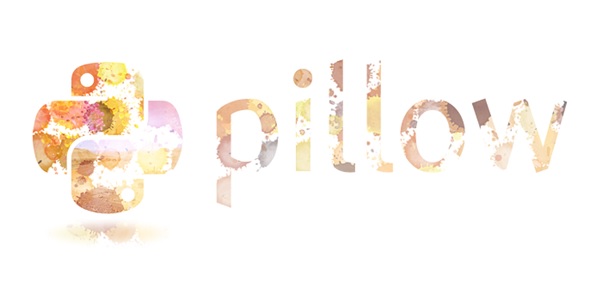
In this example, the PIL.ImageChops.screen() function is applied to the two PNG images to superimpose two inverted images on top of each other.
from PIL import Image, ImageChops

# Open the two image files
image1 = Image.open("Images/pillow-logo-w.png")
image2 = Image.open("Images/ColorDots.png")

# Apply the Screen algorithm
result = ImageChops.screen(image1, image2)

# Display the input and resulting images
image1.show()
image2.show()
result.show()
Output
Input Image 1

Input Image 2
Output Image
Example 3
Here is another example that applies the PIL.ImageChops.overlay() function on the two JPEG image.
from PIL import Image, ImageChops

# Open the two image files
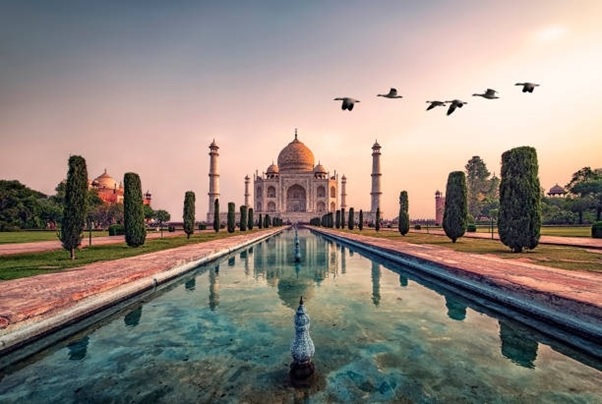
image1 = Image.open("Images/Tajmahal_2.jpg")
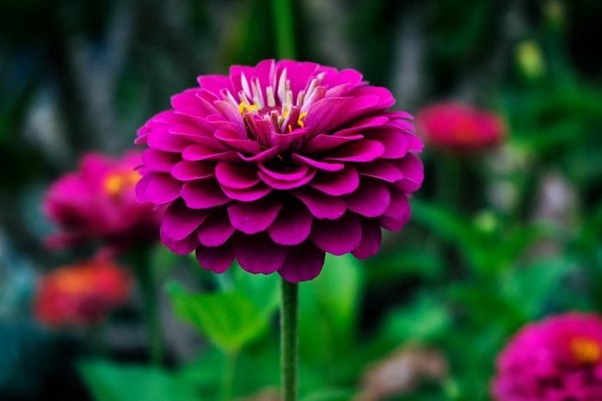
image2 = Image.open("Images/Flower1.jpg")

# Apply the Screen algorithm
result = ImageChops.screen(image1, image2)

# Display the input and resulting images
image1.show()
image2.show()
result.show()
Output
Input Image 1
Input Image 2
Output Image